Introduction
Fila - Bootstrap 5 Admin Dashboard Template
Template Features:
- Dashboard for eCommerce, CRM, Project Managemnt, LMS, Help Desk, HR Managemnt, School, Marketing, Analytics, Hospital, and Finance. Click to View Demo
- 184+ Pages Available
- No jQuery Dependency
- Built on Bootstrap 5.x and Sass
- Project is Based on npm
- Modern Design
- RTL Support for Arabic and Hebrew Languages
- Components Based Style
- Easy to Customize and Expands
- ApexCharts & Apache ECharts for Charts
- Light/Dark Mode
- Swiper Slider
- Full Calendar
- Quill Text Editor
- Integrated with RemixIcon & Material Symbols icons
- W3 Validated
- Clean & Simple Design
- Creative Layout
- Fast, Lightweight & Powerful
- Responsive in Any Device
- Retina Ready
- Free Google Fonts
- Easily Customizable
- Developer Friendly
- Well Documented
Getting Started
The template folder fila is available inside the downloaded zip file. Need to unzip the zip file to find the template also the documentation folder.
The files and folders structure is similar to the following:
- assets/css — folder with CSS files.
- assets/fonts — folder with fonts files.
- assets/images — folder with images files.
- assets/js — folder with JavaScript files.
- assets/js/custom — folder with Custom Javascript files.
- assets/scss — folder with SCSS files.
Upload the template files to the server with the help of one of the FTP-clients like FileZilla.
Files Edit & Upload:
Individual pages can be customized by opening in a code editor such as VS Code. Once all the customization completed then to make the website live you need to upload the updated project files to the hosting server for your own domain. The files can be uploaded using FTP client such as FileZilla.
HEAD CSS Structure
Followings are the css files which loaded inside the Head Section:
<!-- Links Of CSS File -->
<link rel="stylesheet" href="assets/css/sidebar-menu.css">
<link rel="stylesheet" href="assets/css/simplebar.css">
<link rel="stylesheet" href="assets/css/prism.css">
<link rel="stylesheet" href="assets/css/quill.snow.css">
<link rel="stylesheet" href="assets/css/remixicon.css">
<link rel="stylesheet" href="assets/css/swiper-bundle.min.css">
<link rel="stylesheet" href="assets/css/jsvectormap.min.css">
<link rel="stylesheet" href="assets/css/style.css">
Javascript Structure
Followings are the JS files which loaded before the end of HEAD or BODY Section:.
<!-- Link Of JS File -->
<script src="assets/js/bootstrap.bundle.min.js"></script>
<script src="assets/js/sidebar-menu.js"></script>
<script src="assets/js/quill.min.js"></script>
<script src="assets/js/data-table.js"></script>
<script src="assets/js/prism.js"></script>
<script src="assets/js/clipboard.min.js"></script>
<script src="assets/js/simplebar.min.js"></script>
<script src="assets/js/apexcharts.min.js"></script>
<script src="assets/js/echarts.min.js"></script>
<script src="assets/js/swiper-bundle.min.js"></script>
<script src="assets/js/fullcalendar.main.js"></script>
<script src="assets/js/jsvectormap.min.js"></script>
<script src="assets/js/world-merc.js"></script>
<script src="assets/js/custom/apexcharts.js"></script>
<script src="assets/js/custom/echarts.js"></script>
<script src="assets/js/custom/maps.js"></script>
<script src="assets/js/custom/custom.js"></script>
Do You Want Real Demo Images?
Due to the Envato Policy, we are unable to include demo images inside the download bundle so for demo images please submit a ticket in https://support.envytheme.com/.
HTML Structure
The Fila is a responsive template and is based on the Bootstrap Framework. For more information you can check the Bootstrap CSS.
The general template structure is the same throughout the template and each of the part is under a section with a section id name. Here is the general structure:
<div class="card bg-white p-20 rounded-10 border border-white mb-4">
    <div class="d-flex justify-content-between align-items-center flex-wrap gap-3 mb-20">
        <h3>Profit</h3>
        <div class="dropdown select-dropdown without-border">
            <button class="dropdown-toggle bg-transparent text-secondary fs-15" data-bs-toggle="dropdown" aria-expanded="false">
                Last Month
            </button>

            <ul class="dropdown-menu dropdown-menu-end bg-white border-0 box-shadow rounded-10" data-simplebar>
                <li>
                    <button class="dropdown-item text-secondary">Last Day</button>
                </li>
                <li>
                    <button class="dropdown-item text-secondary">Last Week</button>
                </li>
                <li>
                    <button class="dropdown-item text-secondary">Last Month</button>
                </li>
                <li>
                    <button class="dropdown-item text-secondary">Last Year</button>
                </li>
            </ul>
        </div>
    </div>

    <h2 class="lh-1 fs-26 fw-medium" style="margin-bottom: -10px;">$359K</h2>
    <div id="profit_chart" style="margin-bottom: -17px;"></div>
</div>
Responsive Breakpoints
The Fila is a responsive template and is based on the Bootstrap Framework. For more information you can check the Bootstrap CSS.
/* Max width 767px */
@media only screen and (max-width : 767px) {

}

/* Min width 576px to Max width 767px */
@media only screen and (min-width : 576px) and (max-width : 767px) {

}

/* Min width 768px to Max width 991px */
@media only screen and (min-width : 768px) and (max-width : 991px) {

}

/* Min width 992px to Max width 1199px */
@media only screen and (min-width : 992px) and (max-width : 1199px) {

}

/* Min width 1200px to Max width 1399px */
@media only screen and (min-width: 1200px) and (max-width: 1399px) {

}

/* Min width 1400px to Max width 1440px */
@media only screen and (min-width: 1400px) and (max-width : 1700px) {

}
Fonts Used
By default, the template loads Outfit font from Google Web Font Services. The font can be changed based on the website needs. Google Fonts
Font code can be found in the "_style.scss" file path: assets/scss/_style.scss
Font code can be found in the "_variables.scss" file path: assets/scss/_variables.scss
@import url('https://fonts.googleapis.com/css2?family=Outfit:[email protected]&display=swap');

$body-font-family: "Outfit", sans-serif;
Note: After SCSS file run then it will be work
Main Color Change Option
File path: assets/scss/_variables.scss
$body-color: #919aa3;
$body-color-40: #697689;
$body-color-50: #7E8999;
$body-color-60: #8E8DA1;
$body-bg: #eff3f9;
$primary: #0f79f3;
$primary-30: #138BFD;
$primary-40: #f1f2fd;
$primary-50: #796df6;
$primary-60: #978bff;
$secondary: #475569;
$secondary-40: #314055;
$secondary-50: #2B2A3F;
$info: #00cae3;
$info-40: #2AA9FF;
$info-50: #52C7FF;
$success: #2ed47e;
$success-40: #eafbf2;
$success-50: #00b69b;
$success-60: #2ecc71;
$success-70: #0EAC5D;
$success-80: #06B48A;
$success-90: #52D689;
$warning: #ffb264;
$warning-40: #F1B31C;
$warning-50: #FC7013;
$warning-60: #FE9039;
$danger: #e74c3c;
$danger-40: #fdebf3;
$danger-50: #ee368c;
$danger-60: #FD5812;
$light: #f4f6fc;
$light-40: #ddddef;
$light-50: #e7effd;
$light-60: #E6E1F8;
$light-70: #D2D2E4;
$dark: #000000;
$border-color: #e7e2e2;
$border-color-40: #eeeeee;
$border-color-50: #e0e0e0;
$border-color-60: #eaecf2;
$border-color-70: #c2cada;
$border-color-80: #e0e2ec;
$border-color-90: #F5F5F5;
Note: After SCSS file run then it will be work
How to Run SCSS File
Please open the Fila project Visual Studio Code Editor.
# Install NPM
npm install

# Watch your custom Sass for changes and compile it to CSS
sass --watch ./assets/scss/style.scss ./assets/css/style.css
Swiper Slider Edit Option
File path: assets/js/custom/custom.js
// Courses Slider JS
var swiper = new Swiper(".courses-slide", {
    slidesPerView: 1,
    spaceBetween: 24,
    centeredSlides: false,
    preventClicks: true,
    loop: true,
    //effect: "fade",
    autoplay: {
        delay: 8000,
        disableOnInteraction: false,
        pauseOnMouseEnter: true,
    },
    pagination: {
        el: ".swiper-pagination2",
        clickable: true,
    },
});
More Info please browser the link: Swiper Slider Docs Options
Speed Optimization
Please optimize all images KB, MB also, use the image size following by placeholder file path: assets/images/..
- Tinypng
Please minify all CSS file path: assets/css/..
Please minify all JS file path: assets/js/..
How to Change Image?
Please go to the image file path: assets/images/... replace the image which one you want following placeholder image size & name
How to Edit Especially For MaterialIcons
You won't able to add new MaterialIcons except existing but you can if you want to add from scratch but existing will not work and it's the feature of MaterialIcons. MaterialIcons
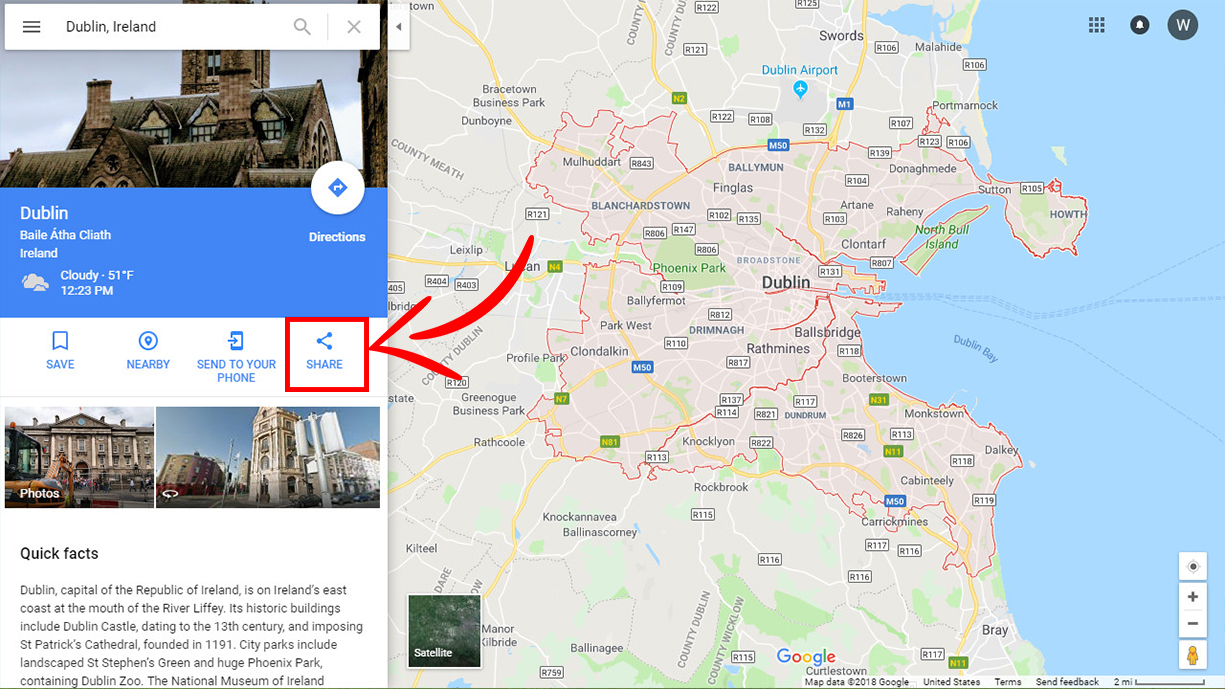
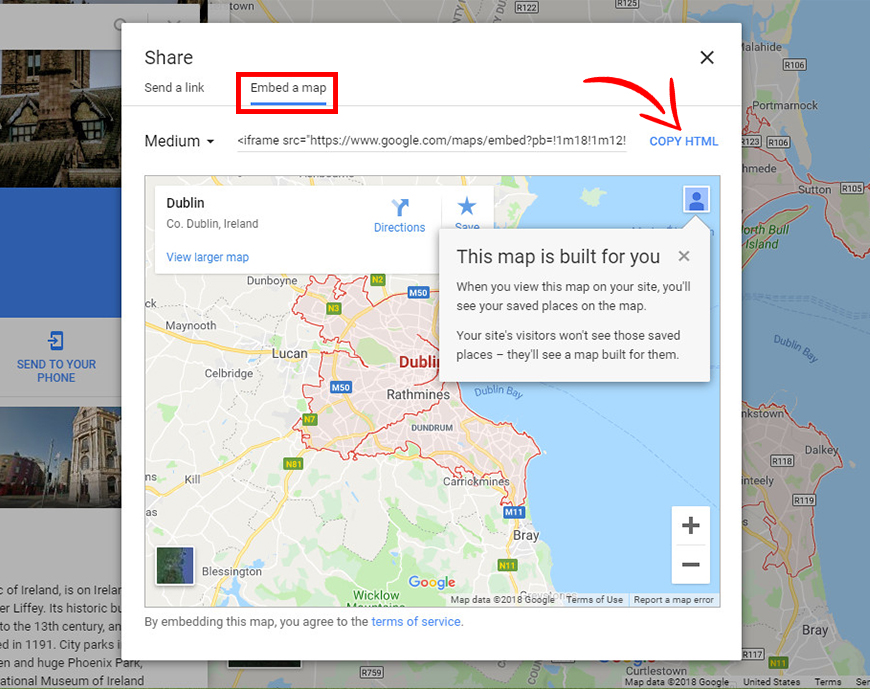
How to Add a Google Maps to The Website?
1. Please go to maps.google.com. Type the location in the search box and click on Share.
2. In the new window click on Embed a map and copy the HTML code of the map. After that add the HTML file.
How to Add New Updates of Existing Template
After a certain time, we will update our project based on the latest technology but in your template, you need to update on your own if you want.
Credits
Note: All images are used for preview purpose only and not included in the final purchase files.
Images from:
https://freepik.com/
https://pixabay.com/
https://unsplash.com/
Google Fonts:
Outfit
IconFont
RemixIcon
Material Symbols
Support
24-Hour Turnaround Support:
- Quick, Dedicated & Professional Support!
- We only provide support through our ticketing system. Please submit your ticket by visiting the EnvyTheme Support System.
- For any pre-purchase query, please use live chat on the item demo site also, email, and the item’s comment section on ThemeForest. Thanks!
Email: [email protected]